UK SHIP, NO TAX

Showing posts with label launch. Show all posts

Sunday, 28 May 2017

How to purchasing Icarscan software on APP ?

Launch Icarscan diagnostic tool full systems for Android / iOS with 5 car software & 3 specica function software free Update Online
Q:Only 8 software free,but If there is no software I need, what should I do
A:You could buy the software software what you need at the EZdiag APP .
Follow these steps below:
1.Run ICarScan APP “EZdiag”
LAUNCH X431 ICARSCAN logo(5)
2.Enter in user name and password, log on APP
buy launch icarscan software (1)

3.Main Menu
buy launch icarscan software (2)

4.Click “Full-system Scan”buy car software and click “Special Tools”buy the special function software
buy launch icarscan software small (3)
5.Car software icon
buy launch icarscan software full system scan (4)
Choose “Purchase More”
buy launch icarscan software (5)

Please choose which software you want to buy
buy launch icarscan software (6)

Make the payment(Click “Buy Now”)
buy launch icarscan software (7)

Choose payment method
buy launch icarscan software paypal(8)
Click “Submit”Finish the payment
6.If purchase Special function software , click the icon as bellow :
Choose the Special software which you want
buy launch icarscan software (10)

Make the payment(Click “Buy Now”)
buy launch icarscan software (11)

Choose payment method
buy launch icarscan software paypal(13)
Click “Submit”, finish the payment .
Done .

Friday, 26 May 2017

Launch ICarScan User Manaul

LAUNCH company released a professional automotive diagnosis tool name is Launch Icarscan,Icardiag is a specially designed auto code reader.ICarScan is a smart phone based vehicle OBD2 and full sysatem diagnostic tool designed with the professional technicians and DIY enthusiasts in mind.
Here is the user manual of how to How to download and install the EZdiag APP and  ICarScan User registration and login

LAUNCH X431 ICARSCAN (2)
LAUNCH X431 ICARSCAN (3)
Download and Install the EZdiag App
1 EZdiag App available on the Apple App Store and Google Play Store.
2. Scan the QR Code to download the AppLAUNCH X431 ICARSCAN
LAUNCH X431 ICARSCAN QP code(4)
Due to the system restraints of Apple iOS, a new App will be required to
install on the first time to open the diagnostic software. Please use
the EZdiag App to perform vehicle diagnosis.
FCC Caution
This device complies with part 15 of the FCC Rules. Operation is subject
to the following two conditions: (1) This device may not cause harmful
interference, and (2) this device must accept any interference received,
including interference that may cause undesired operation.
Any Changes or modifications not expressly approved by the party
responsible for compliance could void the user’s authority to operate
the equipment.
Note: This equipment has been tested and found to comply with the
limits for a Class B digital device, pursuant to part 15 of Ihe FCC
Rules. These limits are designed to provide reasonable protection
against harmful interference in a residential installation. This
equipment generates uses and can radiate radio frequency energy and. if
not installed and used in accordance with the instructions, may cause
harmful interference to radio communications. However, there is no
guarantee that interference will not occur in a particular installation.
If this equipment does cause harmful interference to radio or
television reception, which can be determined by turning the equipment
off and on. the user is encouraged to try to correct the interference by
one or more of the following measures:
1.Reorient or relocate the receiving antenna.
2.Increase the separation between the equipment and receiver.
3.Connect the equipment into an outlet on a circuit different from that to which the receiver is connected.
4.Consult the dealer or an experienced radio/TV technician for help.
7. Click OK,in this way, You can delete all the Asia1 car of diagnostic software.

Launch ICarScan User registration and login
Enter your email address to apply for a user account
LAUNCH X431 ICARSCAN (9)
2.iCarScan device activation
Enter the S/N and A/C (Activation Code) in the password envelope to activate the iCarScan device.
LAUNCH X431 ICARSCAN (10)
3.iCarScan device installation
Step 1: Find the OBDII port, which is usually located underneath the dashboard;
Step 2: Plug the iCarScan into the OBDII port of the vehicle and the LED indicator will light up to show the operating status.
LAUNCH X431 ICARSCAN obd port (11)
1.Remove the iCarScan device after using. Do not leave it in the OBDII port;
2.Turn off the ignition before plugging or unplugging the iCarScan device.
4.Purchase diagnostic software
Stepl Tap on “Full-System Scan” to enter the car line software list or “Special Tools’ to enter the tool software list;
Step2 Select the software, tap on the vehicle name or tool name to see more software details;
Step3 Tap on “Buy It Now’ to enter the purchase confirmation page;
Step4 Tap on “Pay” and follow the instructions to complete payment.
LAUNCH X431 ICARSCAN (13)

Tuesday, 27 September 2016

(solved) Launch X431v+ files deleted before authorization

User puzzles:
I haven’t opened the authorization but deleted the files in the Launch X431V+ pad by accident. Then the icon of X431V+ disappeared. How to solve this?


Solution from obd2express engineers:
1- open X431V plus authorization firstly
2- in the x431v+ pad, go to the official website ( http://dbscar.com/) and register your pad
3- app there after registration, then download the files you need.

Friday, 26 August 2016

Manual for vehicle OBDII diagnostics(DTC)


This is a long post........

What is OBDII diagnostic trouble codes?

A diagnostic trouble code (DTC) is an alphanumeric value that corresponds to a particular type of fault. The list was originally created by the Society of Automotive Engineers (SAE) for use by all vehicle manufacturers who have to comply with OBD II emissions regulations in the U.S, also adopted by European and Asian auto makers.


What are the basic categories of trouble codes?

The trouble codes list can be subdivided into four basic categories:

Powertrain ("P") codes (engine, transmission and emissions systems)
Body ("B") codes (Climate control system, lighting, airbags, etc.)
Chassis ("C") codes (antilock brake system, electronic suspension and steering systems)
Network Communications ("U") codes (controller area network wiring bus and modules)

These codes are further divided into two major groups:

Generic or Global codes, which have a "0" as their second digit to indicate they are common to all makes and models of vehicles. These are the codes that are required for basic emissions fault diagnosis.
and
Enhanced or Manufacturer Specific codes, which have a "1" as their second digit to indicate they are unique to a particular vehicle make or model. These special codes were deemed necessary by the vehicle manufacturers so they could provide additional diagnostic information beyond the basic list of generic OBD II codes for all kinds of faults, not just emissions-related faults.

How to know your car has trouble codes?

If your "Check Engine Light" is on, it means your vehicle has one or more OBD II Trouble Codes.

The light does NOT tell you anything about the problem that triggered the code, whether or not the code is serious or minor, what you should do next, or what might happen if you choose to ignore the light (which many people do!).

Also, light is NOT a general purpose warning light. Serious problems such as engine overheating or loss of oil pressure will generally NOT turn on the Check Engine Light, but they should turn on other warning lights.


How to read OBDII trouble codes?

The only way to know why your Check Engine Light is on is to plug a scan tool into your vehicle's OBD II diagnostic connector. The scan tool will then display the trouble code or codes that have been set. Most scan tools will display the trouble code and a one line description or definition of the code. Some basic code readers may only give you the number but no definition.

NOTE: You cannot diagnose a Check Engine Light without a scan tool! ((although you can access trouble codes on some vehicles via the Driver Information Display if you know the procedure for doing so).

If you don't have a scan tool, ,many auto parts stores and even some repair shop will do a FREE plug in diagnosis to read out the codes. Most repair shops and dealerships, however, usually charge a flat diagnostic fee of $10 to $100 or more to perform a scan tool diagnostic check to read out trouble codes.


How to choose a proper OBDII code reader?

Work for DIY repair on some car:

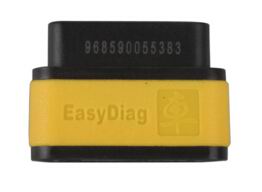
1 Launch EasyDiag connector (€45 + extra €35 for software)
Launch EasyDiag connector


This is the best choice for the DIY repairman. Buy the software for the specific car.

Launch-EasyDiag

Used on iOS Apple or Android devices + Bluetooth

Full access to Engine, Transmission, ABS, SRS (Seatbelts & Airbag)

Read & clear faults, view live data, full color graphing for OBD II...

Optional software:

USA:

BXGM, CHRYSLER, GM, USAFORD


European:

AUDI, BENZ, BMW, CITROEN, DACIA, EUROFORD, FIAT, GAZ, GMSA, JAGUAR, LANCIA, LANDROVER, MINI, OPEL, PEUGEOT, PORSCHE, RENAULT, ROMEO, ROVER, SAAB, SEAT, SKODA, SMART, SPRINTER, VAZ, VOLVO, VW, FORD


Asian:

ACURA, DAEWOO, DAIHATSU, HOLDEN, HONDA, HYUNDAI, INFINITI, JPISUZU, KIA, LEXUS, MAHINDRA, MARUTI, MAZDA, MITSUBISHI, NISSAN, PERODUA, PROTON, SSANGYONG, SUBARU, SUZUKI, TATA, TLISUZU, TOYOTA


2 XTOOL iOBD2 Mini scanner (€24.20)

Support both iOS and Android system + Bluetooth 4.0

Support ALL cars after 1996 with OBD2 EOBD protocol

Read & clear faults, view live data, freeze frame data, Readiness/O2 sensor/ Mode 6 test...


xtool-iobd2-mini


3 cheap ELM327 scan tool (€7 - €15)
         ELM327 Bluetooth with Plastic shell (Item No. SC03)PC-basedBluetooth
ELM327 Plastic with FT232RL Chip (Item No. SC02)PC-based
ELM327 WIFI for iPhone iPad iPod (Item No. SC133)iPhone iPad IpodBluetoothWIFI
MINI ELM327 Bluetooth (black)(Item No. SC104-C)PC-basedBluetoothMini


Functions:

1.Read diagnostic trouble codes, both generic and manufacturer-specific, and display their meaning (over 3000 generic code definitions in the database).
2.Clear trouble codes and turn off the MIL ("Check Engine" light)
3.Display current sensor data, including:
4.Engine RPM
5.Calculated Load Value
6.Coolant Temperature
7.Fuel System Status
8.Vehicle Speed
9.Short Term Fuel Trim
10.Long Term Fuel Trim
11.Intake Manifold Pressure
12.Timing Advance
13. Intake Air Temperature
14.Air Flow Rate
15.Absolute Throttle Position
16.Oxygen sensor voltages/associated short term fuel trims
17. Fuel System status
18.Fuel Pressure


Work for auto repair job:

1 Autel MaxiDas DS708  (€770, 23% off)

It’s a good time to get AUTEL DS708 scanner for it has stopped production and the vendor has BIG SALES on it.


Support WIFI

Languages: English, Spanish, French, German, Portuguese and Russian

Basic function: basic diagnosis, component adaptions, ECU coding, TPMS programming, immobilizer, key coding, and many more unique capabilities

Vehicle: cars and all diesel engine (12V Petrol & Diesel Vehicles) with coverage of over 30 US, European and Asian models from 1998-2015


2 AUTEL MaxiSys MS908 (€2,399)
autel-ms908


Compare with other competing products, MaxiSys MS908 adopts an A9 quad-core 1.40GHz processor and 9.7” LED screen, which running speed increases 50%. Besides, multi task-capable Android Operating System and OE-level diagnostics make this one as the best seller for shops and technicians.


Support WIFI and Bluetooth

Language: English/ German/ Portugal/ Japanese/ French/ Spanish/ Swedish/ Polish

Complete function: read & clear codes, view live data, actuation tests, adaptations, coding (ECU coding), J2534 programming

Model: more than 40 US, European and Asian vehicle makes (DS708: 30):

AUDI, BENZ, BMW, DACIA, EU FORD, LANDROVER, MINI, OPEL, PEUGEOT, RENAULT, SEAT, SKODA, VW, VOLVO, SMART,

JAGUAR, BENZ SPRINTER, SAAB, FIAT, ABARTH, LACIA, ALFA ROMEO, VAUXHALL, MAYBACH, BENTLEY, BUGATTI, PORSCHE,

GM, CHRYSLER, FORD,SUZUKI, KIA, DAWEOO, ISUZU, TOYOTA, SUBARU, SCION, NISSAN, MITSUBISHI, LEXUS, INFINITI,

HYUNDAI, HONDA, ACCURA, MAZDA.


3 VPECKER Easydiag (€135)

Lowest cost for repair work
vpecker


come with WIFI version and Bluetooth version

25 languages: including English, Italian, Japanese, German, Russian, French, Spanish, Portuguese, Polish,Turkish, Dutch, Hungarian, Korean, Czech, Arabic, Indonesian, Persian, Thai, Vietnamese, Finnish, Swedish, Romanian, Bosnian, Chinese (Simplified), English, Chinese (Traditional), etc.

System: Windows XP, win7, win8, win10

Function: basic full system diagnostics, live data, ECU programming and special functions like Battery configuration, ABS Bleeding, EPB, Oil Reset, TPMS

Vehicles:  more than 89 US domestic, European, Asian, Australian and Chinese vehicles makes:

USA
Chrysler, Ford, USA GM, Jeep, Scion

European:
Abarth, para Alfa, para Aston, Audi, Bentley, Mercedes Benz, BMW, Bugatti, para Citroen, Dacia, Ferrari, Fiat fordeu, Jaguar, Lamborghini, Lancia, Landrover, Maserti, Mini Cooper, Opel, Peugeot, Porsche, Renault, Saab, Seat, Skoda, elegante, Vauxhall, Volvo, VW

Asia:
Acura, ASIA GM, Daewoo, Daihatsu, Honda, Hyundai, Infiniti, Isuzu, Kia, Lexus, Para Mazda, Mitsubishi, Nissan, Perodua, Protón, Ssangyong, Subaru, Suzuki, Toyota

Australia:
Holden, Ford (australia)

Chinese:
BYD, Changan, Changhe, Chery, Emgrand, Englon, Foton, Geely, GLEAGLE, GWM, HBSH, Huachen, Lifan Wuling, de yuanes

OBD-II:
Chrysler, Ford, USA GM, Toyota, Lexus, Honda, Hyundai, Kia, Mazda, Mitsubishi, Nissan, Subaru, Suzuki, Abarth, Aston Martin, Bugatti, Ferrari, Lamborghini, Maserti, Benz, BMW,  VW, Audi, Seat, Skoda, Porsche, Jaguar, Land Rover, Volvo, Saab, Alfa


If you have a trouble code...
Write down the code number(s). DO NOT erase the codes until you have written this information down because you will need it later to diagnose the problem.

The code(s) will tell you which sensors or systems are experiencing a problem. If the scan tool does not provide a definition, you will have to look up the code definition where ever you can find it (online, in a shop manual


What does the obdii fault codes mean?diagnostic-trouble-codes


How to clear fault codes?
The best (safest) way to erase trouble codes is to use a scan tool (best form professional seller like http://www.obdexpress.co.uk/ ). The tool communicates with the vehicle computer and tells it to erase the codes. It does not alter any other learned settings that should be retained for normal vehicle operation.

The worst way to clear codes is to disconnect the battery. In most older vehicles (those made before 1996), disconnecting the battery even for a few seconds, or removing the power fuse for the engine computer (PCM) will erase the codes, along with all of the other learned settings the computer has stored over time.

NOTE: Clearing the codes will not keep the Check Engine light off. Sooner or later, the codes will reset and the Check Engine light will be back on UNLESS the problem(s) that caused the code(s) to set in the first place has been diagnosed and repaired.

Caution: Disconnecting the battery to clear codes on many 2006 and newer vehicles is NOT a good idea because it may cause the PCM to forget critical settings. This may have an adverse effect on the operation of the transmission, climate control system and other functions. This, in turn, may require special "relearn" procedures using a factory scan tool or professional grade scan tool to restore proper operation of the affected systems.

Note: Clearing codes with a scan tool, or disconnecting the battery will also reset all of the OBD system monitors back to zero, meaning your vehicle won't be accepted for an OBD plug-in emissions inspection until all of the monitors have run and completed (system ready).


source:http://blog.obdexpress.co.uk/2016/08/26/what-is-obdii-diagnostic-trouble-code-dtc/

Thursday, 31 March 2016

How to use Lauch EasyDiag OBDII reader

This is user manual of the Original Launch EasyDiag Bluetooth OBDII Code Reade for IOS Android, incuding how to log in, register and pay for EasyDiag software.
Lauch-EasyDiag-OBDII-reader
Step 1 - Log in software
Note: before operating, you need to log in software first. If your Android phone’s Bluetooth is closed, a request for Bluetooth will be seen once open the software
how-to-use-Lauch-EasyDiag-OBDII (1)
Select “yes” to turn on Bluetooth; or you can not communicate with EasyDiag
Look through these illustrations for a general understanding for the software
some precautions and warnings about using, read it carefully
how-to-use-Lauch-EasyDiag-OBDII (2)
click “I’ve read it” to enter login interface
how-to-use-Lauch-EasyDiag-OBDII (3)
Click “Login” to open login interface
how-to-use-Lauch-EasyDiag-OBDII (4)
For existing users, input your account to login. For new users, click how-to-use-Lauch-EasyDiag-OBDII (5) to register.
how-to-use-Lauch-EasyDiag-OBDII (6)
Input the necessary messages, and then click “Register and Login”
how-to-use-Lauch-EasyDiag-OBDII (7)
If you have a new connector need to registered, it is suggested to choose “Register Connector” item, once selected, the screen will jump into “Register Connector” page directly.
NOTE: When registration is successful, a confirm letter will be sent to your registered Email.
the interface after login
how-to-use-Lauch-EasyDiag-OBDII (8)
Click “read” to open quick start guide. And also you can open it in “More” item.
The software initial interface
how-to-use-Lauch-EasyDiag-OBDII (9)
1: Function selection list
2: Function extension button
3: Login button
4: Vehicle origin selection,
5: Car model selection area, the download icon means this car's diagnostic software has not been downloaded, if you want to diagnose it, click it to acquire the software.
6: Full screen display switch button
7: Partial display area
If you don’t have an EasyDiag, you can click DEMO icon to get into the demo function interface, and experience the vehicle diagnosis function
If you have already got a Lauch EasyDiag unit, please continue the registration.
Step 2 - Register connector
Plug the EasyDiag adapter into DLC socket and turn on the ignition switch.
Click “User Account” to enter the interface
how-to-use-Lauch-EasyDiag-OBDII (10)
Click “Register Connector”
how-to-use-Lauch-EasyDiag-OBDII (11)
Input Serial Number and verification code, then click “Register” to complete registration.
Note: the product Serial Number and verification code are available in the password envelope.
how-to-use-Lauch-EasyDiag-OBDII (12)
how-to-use-Lauch-EasyDiag-OBDII (13)
Step 3 - Acquire software
Before software download, please complete software acquisition

The download icon means the diagnostic software has not been downloaded, if you want to diagnose this car, please click it to acquire the diagnostic software.

Before purchase, you should select a product serial number
how-to-use-Lauch-EasyDiag-OBDII (14)
In the EasyDiag app, click the brand icon software which you want.

Take “ACURA” as an example.

Click “ACURA” icon
how-to-use-Lauch-EasyDiag-OBDII (15)
If only this software to be purchased, click “Add to cart”.

If you also want to add other software into the cart, close this page and select others add to shopping cart, also you can click “Software Package” to purchase software in packages or individually.

NOTE: Software package only supplies to individual regions.

Press “Create order” after software selection
how-to-use-Lauch-EasyDiag-OBDII (16)
Order list
how-to-use-Lauch-EasyDiag-OBDII (17)
After you click the space which marked in red circle, it would provide some useful information, such as diagnosis soft order name, order number, product serial number, total price, order status, and order time.

Please comfirm those information, and take a note about the order number which is the most important.
how-to-use-Lauch-EasyDiag-OBDII (18)
PAYMENT: You can select pay with PayPal or pay on website; here we choose the latter to illustrate how to pay. As for PayPal method, you can follow the on-screen instructions to complete.

After click button, the browser will automatic jump into LAUNCH user center login page.

Login with name and password, same as EasyDiag app login account.
how-to-use-Lauch-EasyDiag-OBDII (19)
order information, comfirm the order number
how-to-use-Lauch-EasyDiag-OBDII (20)
Click “PAY”
how-to-use-Lauch-EasyDiag-OBDII (21)
two options to pay, one is called “支付宝” for Chinese currency and the other one is “PayPal” for USD
how-to-use-Lauch-EasyDiag-OBDII (22)
a PayPal account is needed before you made the payment
how-to-use-Lauch-EasyDiag-OBDII (23)
login your PayPal account with your email address, and password, and click “continue”.
how-to-use-Lauch-EasyDiag-OBDII (24)
Pay sucess
how-to-use-Lauch-EasyDiag-OBDII (25)
DOWNLOAD: After made payment, please move back to EasyDiag application. And click the diagnosis software icon which have already paid
how-to-use-Lauch-EasyDiag-OBDII (26)
Take “DEMO” as an example, press “Check Download”.
how-to-use-Lauch-EasyDiag-OBDII (27)
Select HONDA, and start to download
how-to-use-Lauch-EasyDiag-OBDII (28)
Select “Download”.
how-to-use-Lauch-EasyDiag-OBDII (29)
Download until completed
how-to-use-Lauch-EasyDiag-OBDII (30)
Press”return” to back to the when diagnosis software download is completed, the download icon on the right bottom will disappear
how-to-use-Lauch-EasyDiag-OBDII (31)